OilLifeV [Legacy] 1.01

![Los Santos Overloaded Logistics [Legacy]](https://img.gta5-mods.com/q75-w500-h333-cfill/images/los-santos-overloaded-logistics/69f498-1777896900345.png "Los Santos Overloaded Logistics [Legacy]")



764
22
764
22
OilLifeV - GTA V Fuel Logistics Mod
===================================
Overview
--------
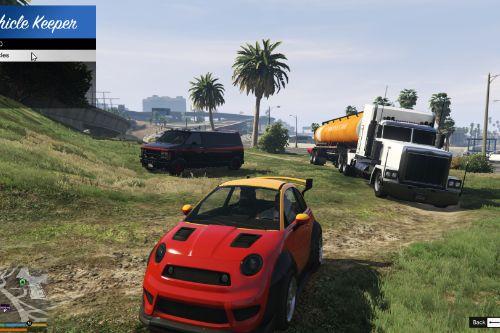
OilLifeV adds fuel logistics gameplay to GTA V:
- Petrol stations have live fuel tanks.
- You can fill stations from a tanker or drain stations into a tanker.
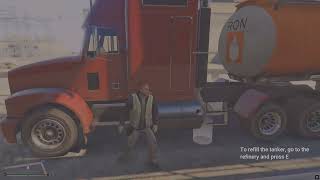
- A refinery can refill your tanker.
- Station capacities and consumption vary by zone density.
Requirements
------------
- Script Hook V
- ScriptHookVDotNet
- A working 'scripts' folder in your GTA V directory
Installation
------------
1. Copy 'OilLifeV.dll' into your GTA V 'scripts' folder.
2. Copy 'OilLifeV.ini' into the same 'scripts' folder.
3. Start GTA V in Story Mode (single-player).
Default Controls
----------------
- 'E': Interaction key
- 'E' at fleet marker: Open fleet spawn model selection menu
- 'R': Drain station to tanker
- 'T': Stop current transfer
- Arrow keys: Navigate menu rows and preview/switch models
- 'Enter': Confirm model selection or trigger the selected menu action
- 'Backspace': Close fleet model menu
- 'F6': Toggle tanker/station capacity panel
- 'F8': Toggle station overview panel
- 'F7': Force reload configuration from 'OilLifeV.ini'
Gameplay Notes
--------------
- You must be on foot to interact with station/refinery markers.
- Bring the configured tanker model near a station/refinery before starting transfer.
- Fleet spawn marker opens a model selection menu where model preview is live.
- Use 'Spawn vehicles' in that menu when you are ready to create packer & tanker.
Persistent Station Tanks
------------------------
Station fuel levels are now persistent between game sessions.
- Save file: 'scripts/OilLifeV.station-tanks.ini'
- Fuel values are saved when the script unloads (for example when leaving the game/session).
- Fuel values are loaded automatically on next startup.
- To reset all station fuel levels, delete 'OilLifeV.station-tanks.ini'.
Configuration
-------------
Main settings are in 'scripts/OilLifeV.ini'.
Useful sections include:
- '[Controls]'
- '[Gameplay]'
- '[Markers]'
- '[Refinery]'
- '[DensityProfiles]'
- '[Petrol Station XX]'
Troubleshooting
---------------
1. Mod does not load:
- Confirm 'OilLifeV.dll' is in GTA V 'scripts'.
- Confirm ScriptHookV and ScriptHookVDotNet v3 are installed.
2. INI changes do not appear:
- Save 'OilLifeV.ini', then press 'F7' in game.
3. Station fuel values seem wrong after edits:
- Close game, back up, then remove 'OilLifeV.station-tanks.ini' to regenerate fresh station tank state.
=========
Changelogs
V 1.01
- Fixed an issue where the text above the Fleet marker was not visible
===================================
Overview
--------
OilLifeV adds fuel logistics gameplay to GTA V:
- Petrol stations have live fuel tanks.
- You can fill stations from a tanker or drain stations into a tanker.
- A refinery can refill your tanker.
- Station capacities and consumption vary by zone density.
Requirements
------------
- Script Hook V
- ScriptHookVDotNet
- A working 'scripts' folder in your GTA V directory
Installation
------------
1. Copy 'OilLifeV.dll' into your GTA V 'scripts' folder.
2. Copy 'OilLifeV.ini' into the same 'scripts' folder.
3. Start GTA V in Story Mode (single-player).
Default Controls
----------------
- 'E': Interaction key
- 'E' at fleet marker: Open fleet spawn model selection menu
- 'R': Drain station to tanker
- 'T': Stop current transfer
- Arrow keys: Navigate menu rows and preview/switch models
- 'Enter': Confirm model selection or trigger the selected menu action
- 'Backspace': Close fleet model menu
- 'F6': Toggle tanker/station capacity panel
- 'F8': Toggle station overview panel
- 'F7': Force reload configuration from 'OilLifeV.ini'
Gameplay Notes
--------------
- You must be on foot to interact with station/refinery markers.
- Bring the configured tanker model near a station/refinery before starting transfer.
- Fleet spawn marker opens a model selection menu where model preview is live.
- Use 'Spawn vehicles' in that menu when you are ready to create packer & tanker.
Persistent Station Tanks
------------------------
Station fuel levels are now persistent between game sessions.
- Save file: 'scripts/OilLifeV.station-tanks.ini'
- Fuel values are saved when the script unloads (for example when leaving the game/session).
- Fuel values are loaded automatically on next startup.
- To reset all station fuel levels, delete 'OilLifeV.station-tanks.ini'.
Configuration
-------------
Main settings are in 'scripts/OilLifeV.ini'.
Useful sections include:
- '[Controls]'
- '[Gameplay]'
- '[Markers]'
- '[Refinery]'
- '[DensityProfiles]'
- '[Petrol Station XX]'
Troubleshooting
---------------
1. Mod does not load:
- Confirm 'OilLifeV.dll' is in GTA V 'scripts'.
- Confirm ScriptHookV and ScriptHookVDotNet v3 are installed.
2. INI changes do not appear:
- Save 'OilLifeV.ini', then press 'F7' in game.
3. Station fuel values seem wrong after edits:
- Close game, back up, then remove 'OilLifeV.station-tanks.ini' to regenerate fresh station tank state.
=========
Changelogs
V 1.01
- Fixed an issue where the text above the Fleet marker was not visible
Carregat per primera vegada: 18 de Abril de 2026
Actualització més recent: 02 de Juny de 2026
Últim descarregat: Fa 1 hora
14 Comentaris
More mods by Galexo:
OilLifeV - GTA V Fuel Logistics Mod
===================================
Overview
--------
OilLifeV adds fuel logistics gameplay to GTA V:
- Petrol stations have live fuel tanks.
- You can fill stations from a tanker or drain stations into a tanker.
- A refinery can refill your tanker.
- Station capacities and consumption vary by zone density.
Requirements
------------
- Script Hook V
- ScriptHookVDotNet
- A working 'scripts' folder in your GTA V directory
Installation
------------
1. Copy 'OilLifeV.dll' into your GTA V 'scripts' folder.
2. Copy 'OilLifeV.ini' into the same 'scripts' folder.
3. Start GTA V in Story Mode (single-player).
Default Controls
----------------
- 'E': Interaction key
- 'E' at fleet marker: Open fleet spawn model selection menu
- 'R': Drain station to tanker
- 'T': Stop current transfer
- Arrow keys: Navigate menu rows and preview/switch models
- 'Enter': Confirm model selection or trigger the selected menu action
- 'Backspace': Close fleet model menu
- 'F6': Toggle tanker/station capacity panel
- 'F8': Toggle station overview panel
- 'F7': Force reload configuration from 'OilLifeV.ini'
Gameplay Notes
--------------
- You must be on foot to interact with station/refinery markers.
- Bring the configured tanker model near a station/refinery before starting transfer.
- Fleet spawn marker opens a model selection menu where model preview is live.
- Use 'Spawn vehicles' in that menu when you are ready to create packer & tanker.
Persistent Station Tanks
------------------------
Station fuel levels are now persistent between game sessions.
- Save file: 'scripts/OilLifeV.station-tanks.ini'
- Fuel values are saved when the script unloads (for example when leaving the game/session).
- Fuel values are loaded automatically on next startup.
- To reset all station fuel levels, delete 'OilLifeV.station-tanks.ini'.
Configuration
-------------
Main settings are in 'scripts/OilLifeV.ini'.
Useful sections include:
- '[Controls]'
- '[Gameplay]'
- '[Markers]'
- '[Refinery]'
- '[DensityProfiles]'
- '[Petrol Station XX]'
Troubleshooting
---------------
1. Mod does not load:
- Confirm 'OilLifeV.dll' is in GTA V 'scripts'.
- Confirm ScriptHookV and ScriptHookVDotNet v3 are installed.
2. INI changes do not appear:
- Save 'OilLifeV.ini', then press 'F7' in game.
3. Station fuel values seem wrong after edits:
- Close game, back up, then remove 'OilLifeV.station-tanks.ini' to regenerate fresh station tank state.
=========
Changelogs
V 1.01
- Fixed an issue where the text above the Fleet marker was not visible
===================================
Overview
--------
OilLifeV adds fuel logistics gameplay to GTA V:
- Petrol stations have live fuel tanks.
- You can fill stations from a tanker or drain stations into a tanker.
- A refinery can refill your tanker.
- Station capacities and consumption vary by zone density.
Requirements
------------
- Script Hook V
- ScriptHookVDotNet
- A working 'scripts' folder in your GTA V directory
Installation
------------
1. Copy 'OilLifeV.dll' into your GTA V 'scripts' folder.
2. Copy 'OilLifeV.ini' into the same 'scripts' folder.
3. Start GTA V in Story Mode (single-player).
Default Controls
----------------
- 'E': Interaction key
- 'E' at fleet marker: Open fleet spawn model selection menu
- 'R': Drain station to tanker
- 'T': Stop current transfer
- Arrow keys: Navigate menu rows and preview/switch models
- 'Enter': Confirm model selection or trigger the selected menu action
- 'Backspace': Close fleet model menu
- 'F6': Toggle tanker/station capacity panel
- 'F8': Toggle station overview panel
- 'F7': Force reload configuration from 'OilLifeV.ini'
Gameplay Notes
--------------
- You must be on foot to interact with station/refinery markers.
- Bring the configured tanker model near a station/refinery before starting transfer.
- Fleet spawn marker opens a model selection menu where model preview is live.
- Use 'Spawn vehicles' in that menu when you are ready to create packer & tanker.
Persistent Station Tanks
------------------------
Station fuel levels are now persistent between game sessions.
- Save file: 'scripts/OilLifeV.station-tanks.ini'
- Fuel values are saved when the script unloads (for example when leaving the game/session).
- Fuel values are loaded automatically on next startup.
- To reset all station fuel levels, delete 'OilLifeV.station-tanks.ini'.
Configuration
-------------
Main settings are in 'scripts/OilLifeV.ini'.
Useful sections include:
- '[Controls]'
- '[Gameplay]'
- '[Markers]'
- '[Refinery]'
- '[DensityProfiles]'
- '[Petrol Station XX]'
Troubleshooting
---------------
1. Mod does not load:
- Confirm 'OilLifeV.dll' is in GTA V 'scripts'.
- Confirm ScriptHookV and ScriptHookVDotNet v3 are installed.
2. INI changes do not appear:
- Save 'OilLifeV.ini', then press 'F7' in game.
3. Station fuel values seem wrong after edits:
- Close game, back up, then remove 'OilLifeV.station-tanks.ini' to regenerate fresh station tank state.
=========
Changelogs
V 1.01
- Fixed an issue where the text above the Fleet marker was not visible
Carregat per primera vegada: 18 de Abril de 2026
Actualització més recent: 02 de Juny de 2026
Últim descarregat: Fa 1 hora
 5mods on Discord

Can I use my own addon truck?
@skipper00123 As long as your truck is attached to the spawned tanker it should be alright. Try it, if it doesn't work, I will try to fix this
I installed the mod and it shows the points on the map, but when I go to the Oil Fleet Spawn point, the interactive "Press E to open fleet menu" bar isn't there as you instructed in the video. How can I fix this error?
@quyenmoi05 Hello,
- Do you have all required files/extension installed (scripthookdonet and scripthookV)?
- So when you come close to the "Oil Fleet Spawn" marker, there is no text above it right? Is there any marker? Can you interact with something anyway?
@Galexo Yes, I tried installing the latest version of ScriptHookVDotNet (including the nightly build) and the latest version of ScriptHookV. OilLifeV works with the ScriptHookVDotNet nightly build, but it only shows the destinations on the map. When I arrived at the Oil Fleet spawn point, there was no marker or text above it, and I couldn't interact with it, even though all the refueling points were displayed on the map.
@quyenmoi05 I might be a code problem rather than an user problem but I should have several similar issue from others. Anyway, I tried to fix the problem in the code and uploaded a new version (1.01). Wait until it is approved and download it and tell me if it has fixed your issue
no marker for me
@Bigsossa Gonna check why when I come back home but I guess it linked to the scriphookdotnet version
thx u sir
After some searching, I found that it runs stably with ScriptHookVDotNet-v3.7.0-nightly.111. The reason it's not working is probably because the mod isn't compatible with the latest versions of ScriptHookVDotNet.
@quyenmoi05 Indeed, I might add the exact working version in the description though
@Galexo Are you welcome to partner edits? I took a look and see whats wrong, and can also add a logging system to see where and why it failed for future use
I looked into the rules and laws. With that in mind I have edited the mod, fixed everything, adding the logging and it works perfect with ScriptHookVDotNet3 v3.7.0.162, i would like to send this to you @Galexo but i will not distribute it to anyone at all so i stay within the laws and rules of this platform, thank you for giving me something to fix! :3
@ByteSizeMods You can join the LSOL discord where I am (https://discord.gg/VXFUfHU2q6)